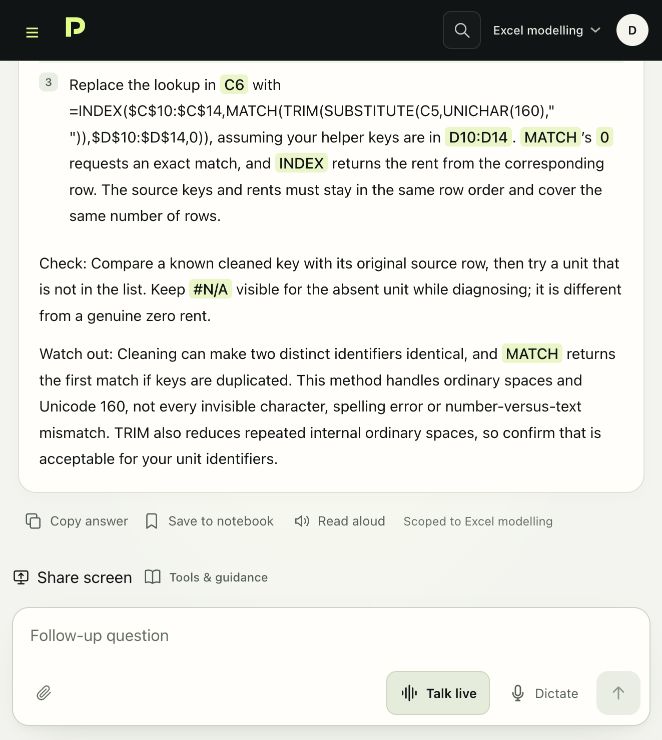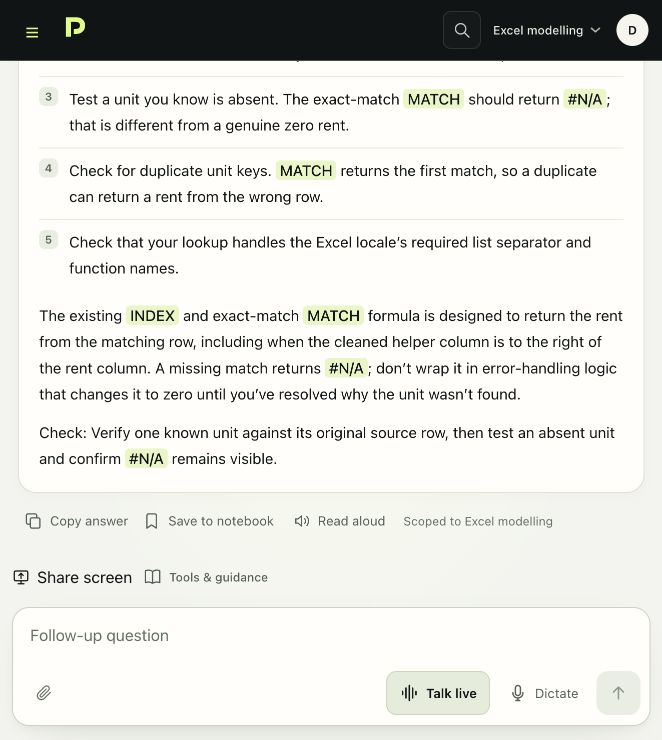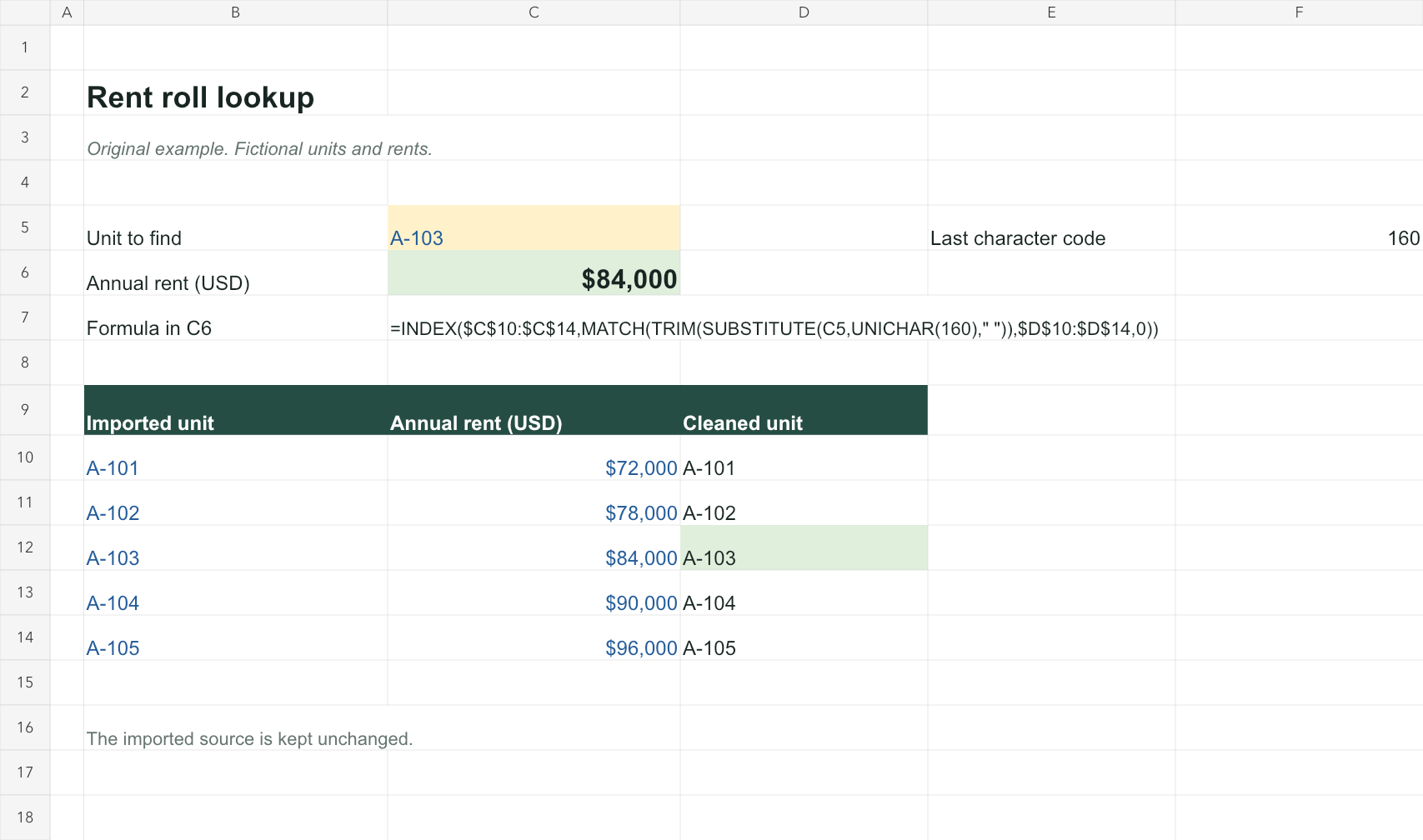
YOUR AI COMPANION FOR PROPERTY SOFTWARE

Learn your software.While you work.

An AI Companion that explains what to do, why it matters and what to check. Ask a question, share a screenshot and work through the steps alongside your software. In your own language.

Three questions free after sign-up. No card required.Continue for US$49/month per module

ARGUS® ENTERPRISEWORKED EXAMPLE

“Same rent. Different breakpoint. What am I missing?”

Read the worked answer
02 / Start with your question

Ask about what’s on your screen.

Describe your task and what you expected to happen. Add a screenshot if it helps explain the problem.

ARGUS ENTERPRISE ILLUSTRATIVE EXAMPLE

Why did the value change when I changed the exit cap rate?

Your question, in your own words.
03 / Make the connection

Understand the result. Know what to check.

ILLUSTRATIVE RESPONSE

Start with the exit value.

With the same income, a higher exit cap rate means a lower exit value.

Same income÷Higher exit cap→Lower exit value

Next: compare the exit assumptions and sale proceeds, holding income constant.

Try another example
04 / Your next step

Bring your next question.

Learn the next workflow. Talk through the next decision. Keep building your know-how.

Try the Companion free

Three questions free after sign-up. No card required.

See a question answered
Built around the tools you use
ARGUS EnterpriseInvestment & valuationARGUS EstateMasterDevelopment & investmentApraoDevelopment feasibilityExcel modellingProperty models
Explore software
EXPLORE A WORKED CONVERSATION

See it help with your work.

Open Propfessor alongside your software. Ask by text or voice, add a screenshot and work through the task together.

Choose your software. See the question, the guidance and what you can do next.

All 13 worked examples
YOU ASK / ESTATEMASTER DF

My construction budget is spread evenly over 18 months. How do I make the drawdown peak in the middle instead?

propfessor.

Shape the spend around your programme.

Use the construction cost line’s S-Curve field. E spreads the cost evenly. S and S1 to S10 select editable drawdown profiles, so you can match the payment pattern without rebuilding the cost line.

WHAT YOU CAN DO NEXT

You can make the construction cash flow follow the programme and explain which assumption changed.

Actual Companion capture · 24-second silent walkthrough
Try it with EstateMaster DF 3 questions free · No card required
See the steps

You have entered the build budget. Now you need the cash flow to reflect the programme, with less spent at the start and end.

  1. On the Input sheet, find the Construction Costs line. Keep its quantity, rate, Start and 18-month Span aligned with your budget and programme.
  2. Open the cost drawdown profiles on the Profiles or S-Curve sheet in your release. Choose an unused profile, such as S1, and set the cumulative spend pattern to rise more quickly through the middle. Cumulative percentages build towards 100%; they are not separate monthly payments.
  3. Return to the construction line and select that profile in S-Curve. Recalculate, then inspect the monthly construction cash flow. Check any other cost lines sharing that profile before editing it again.

ARGUS EstateMaster DF / construction cost drawdown. Profile-sheet names vary by release.

Explore the full worked example
See a follow-up question
Does changing the S-curve change my total budget?

It changes the drawdown pattern, not the quantity or rate you entered. Compare the base cost before escalation, then check escalated costs and finance separately: different payment timing can change those results. Also check contingency and other lines tied to the construction spend.

Pre-written example. No question credit used.
UNDERSTAND IT IN YOUR OWN WORDS

Your software. Explained in your language.

The software may be in English. Your learning doesn’t have to be.

Work through the steps in Arabic, French, Japanese, Chinese, German and more. Keep the software’s on-screen labels recognisable, with the explanation in the language that makes sense to you.

Try the Companion free
15 answer languages

English · العربية · Français · Deutsch · Español · Português · Italiano · Nederlands · Polski · Türkçe · Русский · 简体中文 · 日本語 · 한국어 · हिन्दी

Choose your answer language in Language & voice. This changes the guidance, not the app’s interface.

ASK IN YOUR LANGUAGE. LEARN IN YOUR LANGUAGE.

ARGUS EstateMaster DF

أستخدم ARGUS EstateMaster DF لدراسة جدوى مشروع. مدة الإنشاء 18 شهراً، وأريد توزيع تكلفة الإنشاء بمنحنى S بدلاً من توزيعها بالتساوي. كيف أضبط ذلك، وما الذي أراجعه في التدفق النقدي؟ اشرح الخطوات باختصار.

EstateMaster DF 7.30

propfessor.العربية

في Input sheet ضمن Construction Costs، تأكد أن للبند قيمة Start ومدة Span تساوي 18 شهراً؛ فالمنحنى يوزّع التكلفة على فترة البند.

في عمود S-Curve للبند، اختر S أو أحد الملفات من S1 إلى S10.

Read the complete reply

منحنى S يوزّع تكلفة الإنشاء على أشهر الـ18 وفق نسب تراكمية، بدل تقسيمها بالتساوي؛ ويمكنك تطبيق S أو تخصيص ملف منحنى وربطه ببند التكلفة.

في Input sheet ضمن Construction Costs، تأكد أن للبند قيمة Start ومدة Span تساوي 18 شهراً؛ فالمنحنى يوزّع التكلفة على فترة البند. في عمود S-Curve للبند، اختر S أو أحد الملفات من S1 إلى S10. إذا أردت تعديل شكل المنحنى، افتح Profiles ثم Cost Drawdown Profiles وعدّل النسب التراكمية للملف المختار. النقطتان الأولى والأخيرة ثابتتان عند 0% و100%، ولا يمكن تعديلهما. راجع التوزيع الشهري الناتج في التدفق النقدي، وتأكد أن المبالغ موزعة على أشهر الفترة كما تقصد. راجع أيضاً أثر التوقيت على السحوبات والتمويل والفوائد إذا كانت ممولة.

Check: سيتغير توزيع المبالغ بين الأشهر. ومع ثبات بقية المدخلات، لا يتغير المبلغ الأساسي، لكن إذا كان التصعيد سارياً خلال فترة الصرف فقد يتغير الإجمالي المصعّد بسبب اختلاف التوقيت.

تنطبق أسماء الشاشات والخطوات هنا على الواجهة الموثقة لـ7.30؛ لا أستطيع تأكيد أن أسماء الواجهة نفسها في إصدارك.

View the Companion capture

ARGUS Enterprise

J’utilise ARGUS Enterprise 14. Comment accorder six mois de franchise de loyer à un locataire tout en continuant à lui facturer les charges récupérables ? Explique-moi les réglages à vérifier.

ARGUS Enterprise 14.0

propfessor.Français

Dans ARGUS Enterprise 14.0, saisis six mois de franchise sur le bail et vérifie que les charges restent dues : Pay During Free Rent doit être réglé sur Yes, et le profil de franchise ne doit pas abattre les charges récupérables.

Read the complete reply

Dans ARGUS Enterprise 14.0, saisis six mois de franchise sur le bail et vérifie que les charges restent dues : Pay During Free Rent doit être réglé sur Yes, et le profil de franchise ne doit pas abattre les charges récupérables.

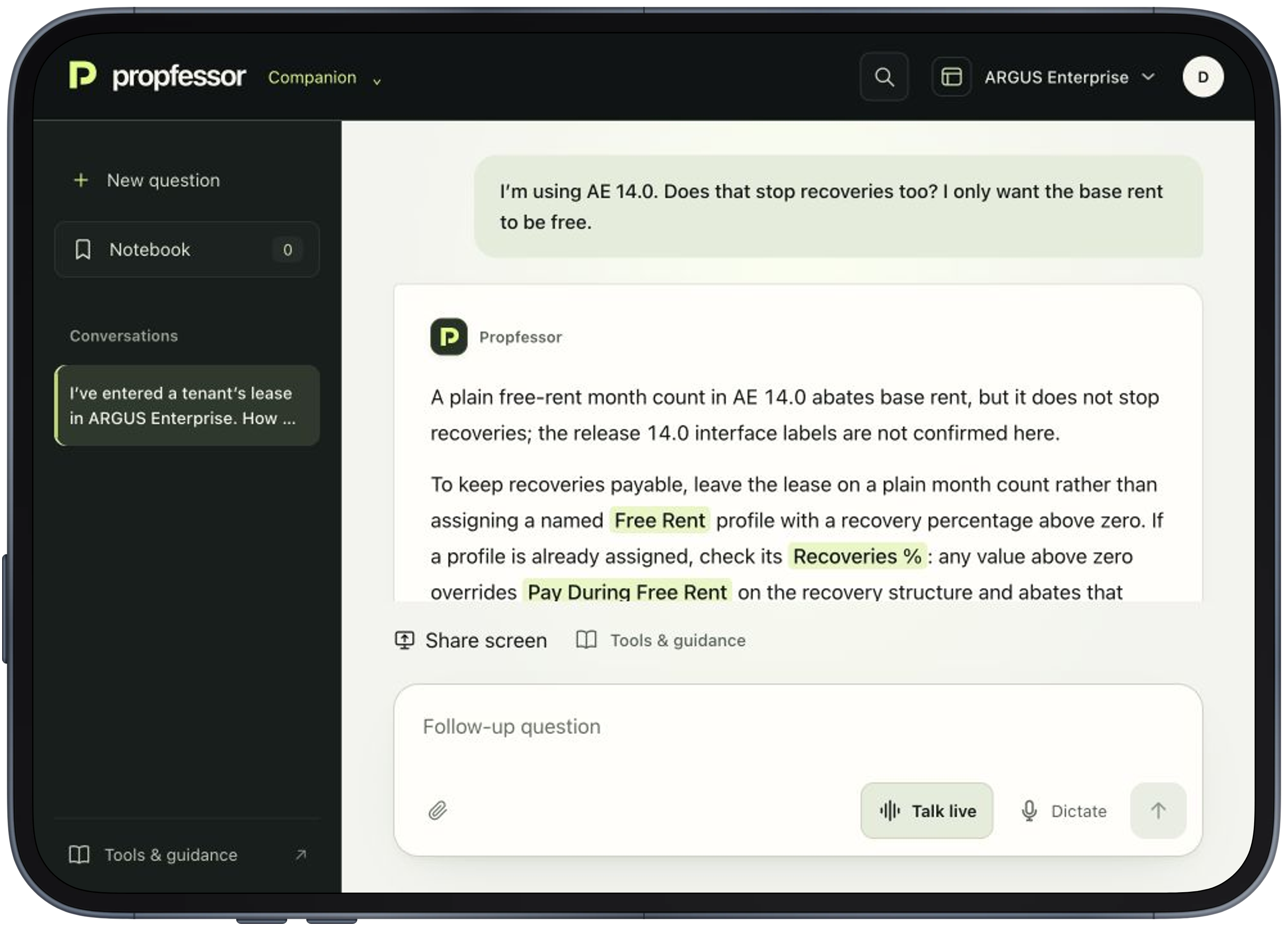
Dans Property Editor > Inputs > Tenants > Rent Roll, saisis 6 dans Free Rent (Months) pour le locataire. Une franchise saisie en nombre de mois s’applique au début du bail. Par défaut, elle abaisse le loyer de base, les augmentations fixes et l’indexation, mais pas les charges récupérables. Dans Property Editor > Inputs > Tenants > Recoveries, vérifie la structure attribuée au locataire et son réglage Pay During Free Rent. Mets-le sur Yes pour que les charges continuent pendant la franchise. Si le bail utilise un profil de franchise, vérifie aussi Property Editor > Inputs > Market > Free Rent. Dans ce profil, Recoveries % doit être à 0% si tu veux facturer la totalité des charges récupérables. Toute valeur supérieure à zéro abaisse cette part et prend le dessus sur Pay During Free Rent, même si ce dernier est réglé sur Yes.

Ces étapes correspondent aux écrans documentés pour la version 14.0. Si tu veux une franchise différente à la création d’un nouveau bail ou au renouvellement, le profil distingue New Free Rent et Renew Free Rent; pour un bail existant, règle le nombre de mois sur sa ligne de Rent Roll.

View the Companion capture

ARGUS Enterprise

Ich arbeite mit ARGUS Enterprise 14. Zwei Mieter haben denselben Umsatz, aber eine unterschiedliche Umsatzmiete. Wie prüfe ich, ob eine natürliche oder feste Umsatzschwelle verwendet wird? Erkläre kurz, welche Einstellungen ich vergleichen soll.

ARGUS Enterprise 14.0

propfessor.Deutsch

Vergleiche Break Amount: Natural berechnet die Schwelle aus Mindestmiete und Sales %; bei einer festen Schwelle wählst du $/SF oder Annual $ und prüfst den eingetragenen Betrag. Gleicher Umsatz bedeutet daher nicht automatisch gleiche Umsatzmiete.

Read the complete reply

Die unterschiedliche Umsatzmiete kann an der Umsatzschwelle liegen: Bei einer natürlichen Schwelle berechnet ARGUS sie aus Mindestmiete und Prozentsatz, bei einer festen Schwelle wird ein Betrag vorgegeben. Die genaue Oberfläche für Release 14 kann ich anhand der verfügbaren Angaben nicht bestätigen; die folgenden Schritte sind für Release 14.0 beschrieben.

Öffne bei jedem Mieter Tenants > Rent Roll > Percentage Rent. Vergleiche Sales % Basis, Sales % und Sales Amount samt Sales Amount Unit. Sales % Basis muss aktiv sein, sonst bleiben die Umsatzfelder gespeichert, erzeugen aber keine Umsatzmiete. Achte darauf, dass beide Mieter dieselbe Umsatzbasis verwenden, etwa $/SF oder Annual $. Vergleiche Break Amount: Natural berechnet die Schwelle aus Mindestmiete und Sales %; bei einer festen Schwelle wählst du $/SF oder Annual $ und prüfst den eingetragenen Betrag. Gleicher Umsatz bedeutet daher nicht automatisch gleiche Umsatzmiete. Vergleiche auch Inflation, weil sie die Umsatzannahme fortschreibt. Eine geänderte Mindestmiete kann bei Natural die Schwelle verschieben, auch wenn du die Umsatzmieteinstellungen nicht geändert hast.

Prüfe anschließend die Mieterwerte im Bericht Tenant Retail Revenue & Sales und die Umsatzmietzeile im Cash Flow.

View the Companion capture

Excerpts from real Companion conversations. Both the question and the answer are in the learner’s language.

Companion pricing

See the quality before you subscribe.

Start with three free questions on your own work. Then choose a Companion for the software you use: US$49 a month, or US$490 a year.

One module means one software product, such as EstateMaster DF or ARGUS Enterprise. Each subscription covers one module.

One Companion moduleMONTHLY ACCESS
US$49/ month

Per module. Billed monthly.

  • Step-by-step guidance for your software
  • Ask and learn in 15 languages
  • Talk live, screenshots and screen sharing
  • Read aloud and a Notebook in your browser
  • Saved conversations to pick up again

Three questions in total across modules, including follow-ups. No card required.

Cancel renewal anytime. Software licences and full courses are separate. Compare monthly and annual access.

GUIDANCE YOU CAN PUT TO WORK

Know which setting to change.

Ask in your own words. Get the setting, the reason and the next check, then follow up as you work.

See the Companion in action

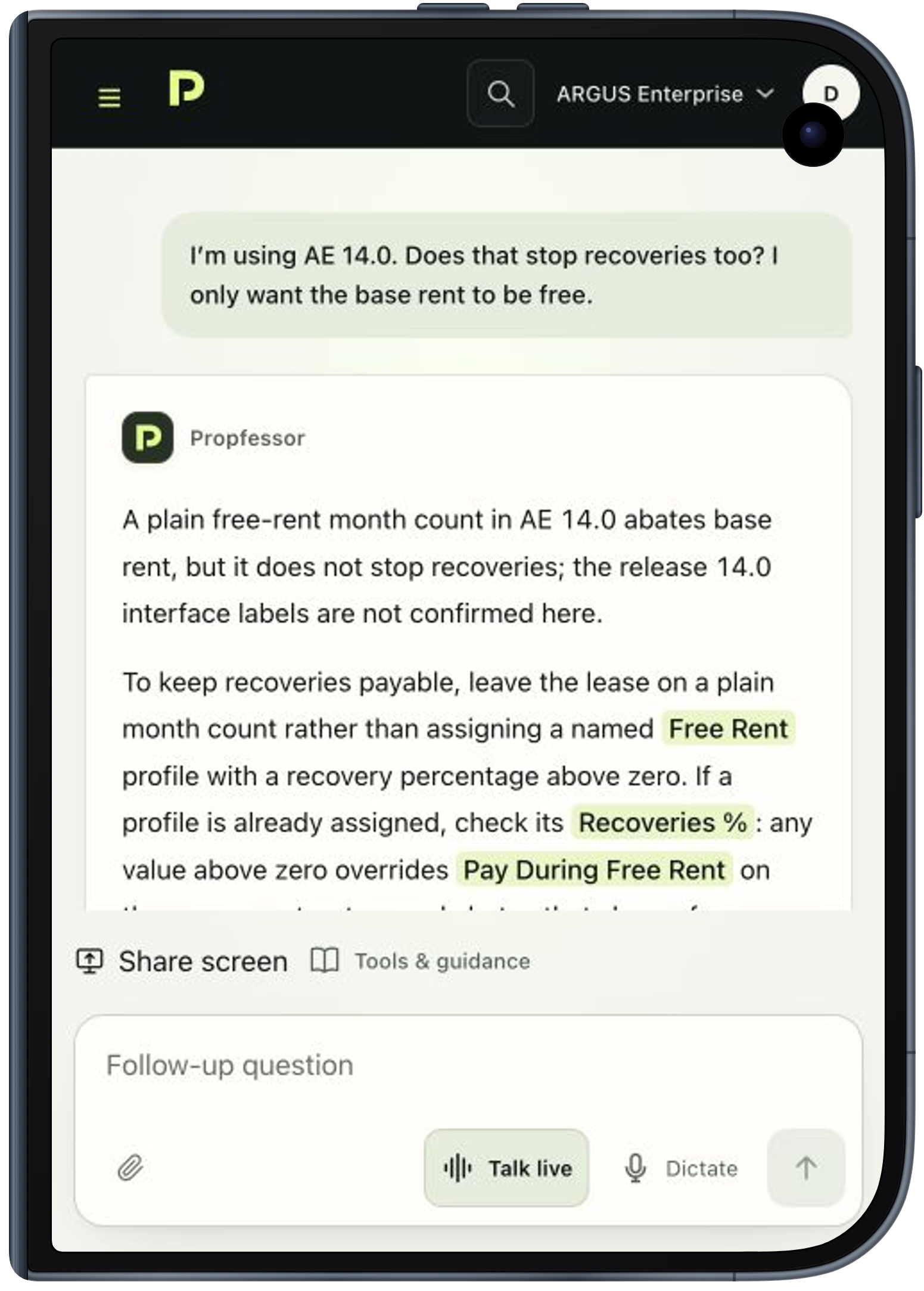
Example question: How do I keep recoveries payable during free rent? Check Pay During Free Rent is Yes in the recovery structure. If using a Free Rent profile, check Recoveries is 0%. Then check the tenant’s cash flow.

A COMPANION FOR THE WAY YOU WORK

Keep working. Keep the conversation going.

Ask, listen, show the problem and keep what you learn. Use Propfessor alongside the software you already have.

01 / TALK IT THROUGH

Your software on the computer. Your Companion beside you.

Open Propfessor on your phone and use Talk live. Describe what you’re doing, ask a follow-up and hear the response while you work on your computer.

Or talk on the same computer. Speak in your preferred language. Live calls last up to four minutes; the conversation keeps the questions and answers.

02 / SHOW WHAT YOU SEE

Less explaining. More context.

Attach a screenshot of the cell, settings or report you want to understand. On your computer, use Share screen to choose a screen, window or tab and include its current view with your question.

You choose what to share. A phone beside your computer does not automatically see its screen. Remove private information before sharing.

03 / KEEP WHAT CLICKS

Listen now. Keep it for next time.

Use Read aloud to hear an answer. Save a useful answer or selected passage to your Notebook, add your own notes and return to it as you work.

Conversations stay with your account. Notebook entries are kept for this account and module in the browser where you saved them.

Watch a complete Companion conversation
WHY A COMPANION

The lesson ends. The questions keep coming.

You invest in software, then in learning to use it. The real questions often arrive later, when you are back at your desk applying it to your own project.

01 ↗

Learn as you do the work.

Get step-by-step guidance drawn from a dedicated knowledge base of your software’s workflows, settings and calculations. Understand both how to do it and why.

02 ↗

Keep the conversation going.

Type or speak as you would to a colleague. Show a screenshot, ask a follow-up and return when the next question arises. Your Companion continues beyond a single lesson.

03 ↗

An independent perspective.

Propfessor is independent of the software vendors. The focus is your understanding, including the limitations and trade-offs that matter to the task.

CHOOSE HOW YOU LEARN

Practise a task, or work through your own.

The Propfessor robot helps a property professional at work.
GUIDANCE WHILE YOU WORK

Your AI Companion

Bring a task from your own work. Ask for the steps, show a screenshot and follow up as you put them into practice.

Three free questions after sign-up. Paid access is per module.
02 / Start with your software

The right context. A better place to begin.

Each module stays focused on its own tools. Choose the software you work in.

View all current modules and what is coming next
ARGUS EnterpriseARGUS DeveloperARGUS IntelligenceARGUS EstateMaster DFARGUS EstateMaster DMARGUS EstateMaster IAARGUS EstateMaster CCARGUS EstateMaster HFApraoExcel modellingRockport VALProcoreAI in commercial real estateYardiPlannedMRI SoftwarePlannedRICS APCPlanned

Propfessor is independent. Product names identify the software covered; they do not imply vendor affiliation or endorsement.

A few things, made clear.

Do I need to be an expert already?

No. Start with the task in front of you and say how much context you need. You can ask a follow-up when a term or step needs more explanation.

What is Propfessor, exactly?

Propfessor combines an AI Companion with practical learning for property software. The Companion draws on software-specific knowledge to guide you through workflows and explain the reasoning behind them. You can also practise with free Course samples. It works alongside your software, without running or editing your model. Full courses are still in development.

What makes the Companion specific to my software?

Each module draws on a dedicated software knowledge base. The guidance connects workflows, settings and calculations with the property concepts behind them. You can ask how to do something, explore why a step matters and continue with follow-up questions as you work.

Can I upload my model?

You can attach a screenshot to add context. This offer does not include uploading model files. Keep confidential details out of screenshots you share.

What happens after my three free questions?

The three questions require sign-up, with no card required. Monthly and yearly Companion subscriptions are available per module. Full courses are still in development.

Your next question is a good place to start.

Choose your software. Tell your Companion what you want to learn or do.

Try the Companion free